Kin and Conquest Settings and Accessibility
Movement modes, readability, and menu navigation
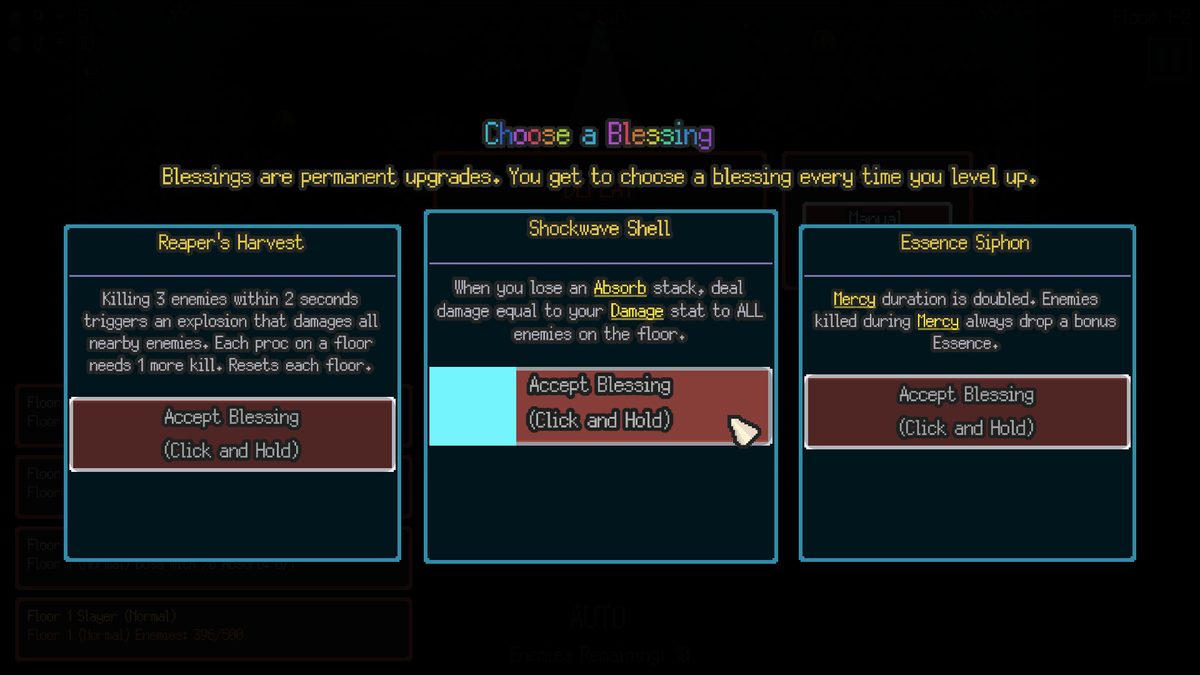
Kin and Conquest exposes most comfort and control options in a dedicated Settings menu accessible from the town hub and pause screens. The Fox Knocks built the game as an incremental idle action adventure where proximity combat, Blessings, and skill effects can fill the screen quickly—so movement mode, visual clarity, and menu navigation matter as much as raw weapon stats. This guide walks through every setting worth touching before your first serious floor, how accessibility choices interact with totems and auto pathing, and when to use Reset to Defaults if experiments go wrong.
Pair this page with the mouse, keyboard, and gamepad guide for input philosophy and the Getting Started guide for first-hour priorities. If you are tuning performance alongside readability, cross-check system requirements for storage and VRAM guidance tied to the downloadable PC build.
Opening Settings and what persists
Settings changes typically apply immediately or on the next run depending on the option. Movement mode, opacity sliders, audio levels, and language selections persist between sessions on both Steam and itch.io downloads. That persistence makes it safe to experiment during Normal farming—just remember that auto-follow habits learned on Floor 1 may break guardian spacing on Floor 3 if you never revisit the menu.
Open Settings before pushing beyond tutorial floors. Many deaths blamed on difficulty are actually readability or pathing issues fixable in minutes.
Movement modes: click, auto-follow, keyboard, gamepad
Kin and Conquest offers multiple ways to steer your Fox:
- Click-to-move — left-click destinations for deliberate pathing. Best for mining between waves, learning guardian telegraphs, and avoiding accidental totem contact.
- Auto-follow cursor — the Fox continuously paths toward your pointer. Ideal for idle-style farming and long kill-count sessions, but dangerous near totems because pathing prioritizes interactables over combat safety.
- Keyboard — directional movement (typically WASD or arrow keys depending on binding) for instant dodge corrections during dense packs.
- Gamepad — analog stick movement for players who prefer controller-first play.
The store description and demo devlogs emphasize that keyboard and gamepad are first-class options even though marketing clips often show mouse play. Switch modes between runs rather than mid-guardian if possible so muscle memory stays consistent.
Auto-follow pairs poorly with golden totem planning unless you deliberately keep the cursor away from totem tiles until packs are clear. Read the Totems guide before enabling auto mode for entire sessions.
Player Skill Opacity and visual readability
Player Skill Opacity adjusts how strongly Blessing procs, weapon skill visuals, and related combat effects render on screen. Default opacity works on Floor 1, but stacked Blessings—especially area effects like Chain Lightning—can obscure enemy telegraphs on deeper floors.
Practical tuning steps:
- Run one Normal room with default opacity and note whether red telegraphs or explosion radii disappear under bright VFX.
- Raise opacity (or reduce effect clutter depending on how the slider is labeled in your patch) until telegraphs remain readable during proc spikes.
- Re-test on a floor with explosive enemies such as Ferret Exploders, because radius patches made those threats larger in public balance notes.
Books and Staffs players should verify projectile readability separately—ranged weapons add another visual layer on top of Blessing effects. Lower clutter helps you see whether disengage is still necessary after a buff starts.
Demo reviewers praised Kin and Conquest color clarity for colorblind-friendly readability, but dense proc stacks still overwhelm anyone if opacity stays at defaults through Floor 3.
Reset to Defaults
Reset to Defaults returns Settings to the baseline the revised tutorial expects. Use it when:
- Movement experiments feel worse than when you started.
- Opacity tweaks overshot and hide helpful feedback along with clutter.
- You changed multiple options and lost track of which caused input lag or pathing bugs.
Public patch notes around May 2026 added Reset to Defaults alongside broader menu quality-of-life work. That timing matters for returning demo players who tweaked settings months ago and forgot current values. Reset, replay the tutorial movement prompts, then change one option at a time.
Reset does not undo skill tree purchases, weapon upgrades, or run progress—only configuration.
Keyboard and gamepad menu navigation
Development patches added full keyboard and gamepad menu navigation so hub shops, skill tree purchases, and Settings confirm without mouse clicks. Community notes from early May 2026 highlight Space and Enter as confirm inputs when navigating menus—critical for achievement hunters finishing shop transactions on controller.
If a purchase or skill buy fails to register, verify you confirmed with the correct button before assuming a bug. Controller users should test menu navigation in town before entering a guardian attempt where mid-fight menu access is limited.
This wiki’s Tutorial System guide mentions the same menu navigation improvements introduced while onboarding was revised in 0.5.3.
Rendering device picker and performance-related options
Demo-era devlogs and player reports reference a rendering device picker (or equivalent GPU selection) in Settings for PCs with multiple graphics adapters. Laptops with integrated and discrete GPUs sometimes launch on the wrong device, causing frame hitches that feel like input lag during proximity kiting.
If combat stutters despite meeting system requirements, open Settings and select the discrete GPU when available. The 1.0 itch.io download (Kin and Conquest.zip, roughly 392 MB per the release devlog) is modest, but VFX-heavy guardian rooms still spike load on misconfigured hardware.
Windowed mode at 1080p remains a practical readability tweak even when not exposed as a labeled accessibility setting—use Windows display scaling if telegraphs blur on high-DPI panels.
Audio, language, and localization
Kin and Conquest ships broad interface localization on Steam—English plus nine additional languages in store listings. Language selection lives in Settings and affects tutorial text, shop labels, and challenge descriptions. Changing language does not alter combat mechanics but helps non-English readers parse Soul and Challenge wording correctly after the 0.5.3 tooltip fixes documented on the Updates page.
Separate music and SFX sliders help incremental players who keep the game open for long farms without muting blessing proc cues entirely.
Accessibility mindset for incremental combat
Accessibility in Kin and Conquest is less about a single colorblind toggle and more about reducing cognitive load during automatic combat:
- Choose movement that matches your attention level (active keyboard versus idle auto-follow).
- Keep telegraphs visible through opacity tuning.
- Use menu navigation that matches your input device so town loops stay frictionless.
- Reset defaults when experiments stack into confusion.
Players with motor limitations may prefer auto-follow for farming and switch to click or keyboard only for guardians—Settings makes that hybrid viable between runs.
Settings checklist before higher difficulties
| Check | Why it matters |
|---|---|
| Movement mode matches current floor | Auto-follow wastes totems; keyboard helps dense packs |
| Player Skill Opacity readable | Blessings must not hide explosion radii |
| Confirm / menu keys tested | Shop purchases must register for progression |
| GPU / rendering device correct | Hitches mimic bad controls |
| Language and audio comfortable | Long sessions need sustainable UI |
Related pages
Deep input comparisons live in Controls. First-hour loop context is in Getting Started. Totem interactions with auto mode are in Totems. Patch history for menu navigation and tooltip fixes is on Updates. Visit the Guides hub for the full recommended reading order including this Settings page.
Frequently Asked Questions
Quick answers for Kin and Conquest players.
What does Player Skill Opacity do in Kin and Conquest?
It controls how strongly Blessing procs, skill visuals, and related combat effects render. Raise or lower it until enemy telegraphs stay readable during dense fights.
Should I use auto-follow or click-to-move?
Auto-follow suits idle farming and long challenge grinds. Click-to-move or keyboard works better for guardians, mining precision, and avoiding accidental totem activations.
When should I use Reset to Defaults?
Use it when movement or opacity experiments feel worse than the tutorial baseline. Reset restores default Settings without touching skill tree or weapon progress.
Can I navigate menus with keyboard or gamepad?
Yes. Patches added keyboard and gamepad menu navigation with Space and Enter confirm inputs so shop and skill purchases work without a mouse.
Where are Kin and Conquest settings explained for performance?
Check rendering or GPU options in Settings if frames stutter, and read system requirements for the ~392 MB itch.io zip and recommended 4 GB RAM targets.
Do settings apply to both Steam and itch.io?
Yes. Both storefronts use the same downloadable PC build, so movement modes, opacity, and menu navigation behave the same.